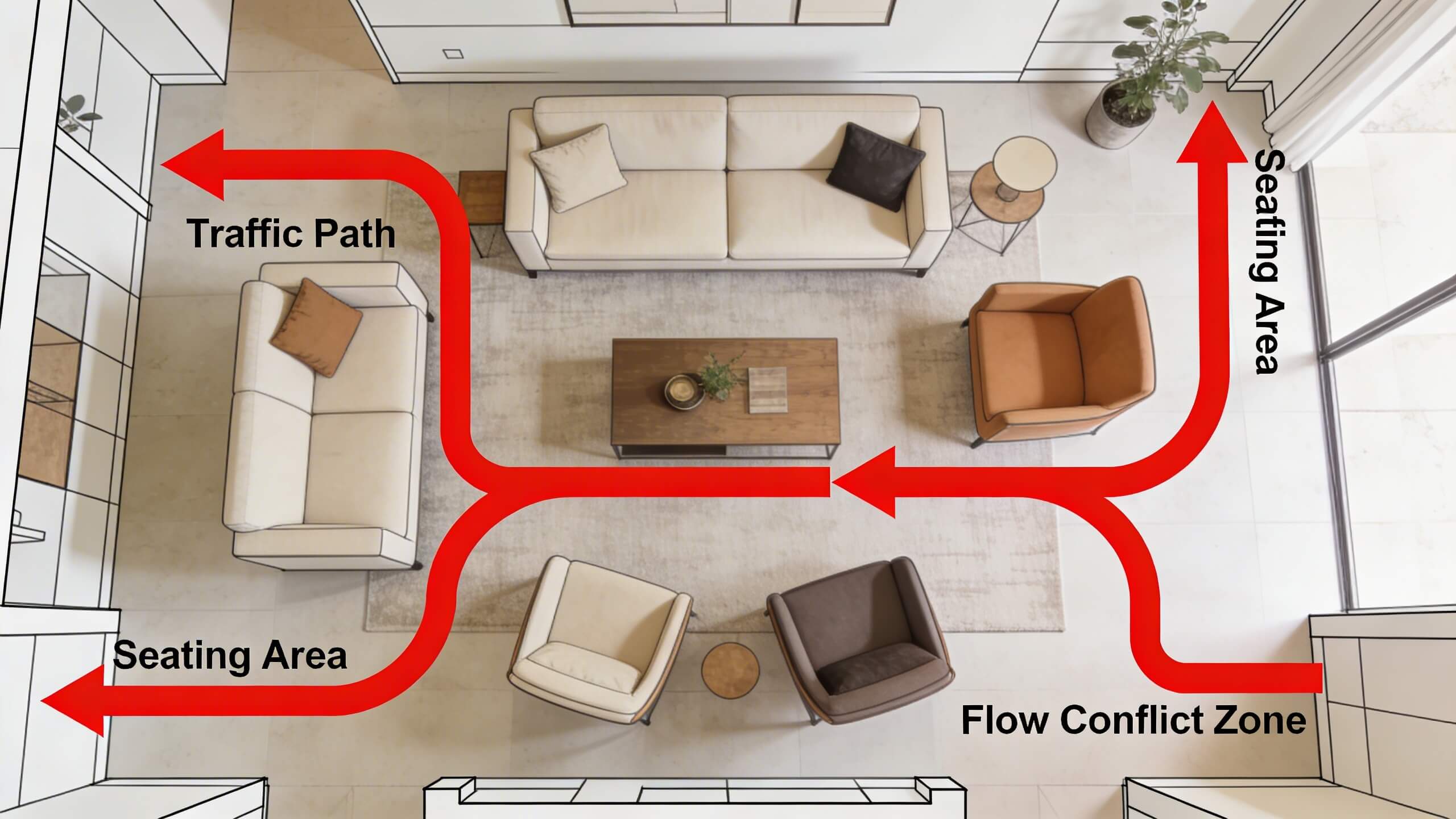
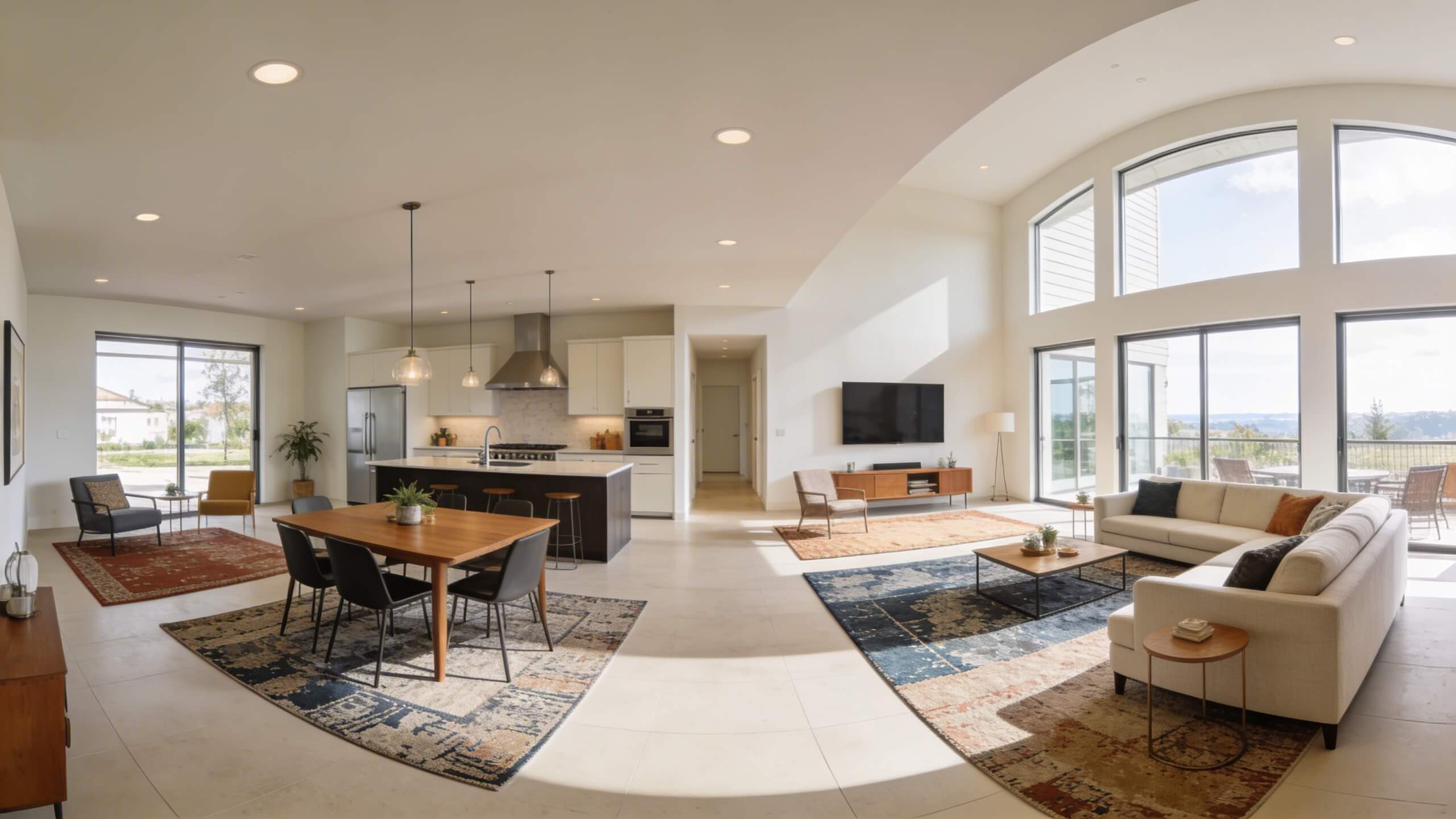
A real estate listing can have beautiful photos and still leave buyers wondering how the rooms connect. Is the kitchen open to the living area? Could the spare bedroom fit a desk? How much space is there around the bed? A floor plan answers some of those questions; a furnished 3D model can make the layout easier to imagine.
Arcadium is browser-based 3D floor plan software that lets real estate agents build an editable property layout, add furniture, view rooms from different angles, and share the result. This guide walks through one residential example, starting with an existing floor plan and ending with a presentation that can help buyers understand the space. It also explains where measurements and marketing claims need extra care.
What Is a Real Estate Floor Plan?
A real estate floor plan is an overhead representation of a property showing how rooms, walls, entrances, openings and permanent features relate to one another. A rough sketch may only identify rooms and connections. A measured 2D plan adds dimensions and a consistent scale. A furnished 3D model goes further by demonstrating volumes, sightlines and possible uses for the rooms.
Consider an illustrative two-bedroom listing: the photographs show an attractive kitchen, living room and bedrooms, but not whether the bathroom opens onto the hallway or whether the kitchen is separate from the dining space. A labeled 2D plan makes those connections clear. A furnished 3D view can then help a buyer picture a dining table or bed in context. Neither replaces visiting the property or checking its actual dimensions.
A useful floor plan should help buyers answer practical questions before a showing: Where are the bedrooms relative to the living area? How does someone move from the entry to the kitchen? Are there stairs or level changes? Which openings constrain furniture? If a plan fails to answer those questions clearly, more decorative detail will not necessarily improve it.
Why 3D Floor Plans Are Useful for Realtors
Traditional photographs show how a property looks from selected angles, while a 2D plan explains room sizes and connections. A 3D floor plan adds context: buyers can see furniture in relation to doors, compare room arrangements, and follow the route from one space to another. For vacant homes, that can make an empty room easier to interpret. For remote buyers, a shared model can be a useful companion to photos and an in-person showing.
A modeled walkthrough is not the same as a photographic virtual tour, and conceptual furniture or finishes must not be mistaken for existing features. Used with that distinction in mind, 3D visualization for real estate is a practical way to communicate a property’s layout—not a replacement for verified measurements or an inspection.
The importance of floor plans is also reflected in buyer research. In the National Association of Realtors’ 2025 Home Buyers and Sellers Generational Trends report, 57% of buyers who used the internet rated floor plans as a “very useful” website feature; 83% said the same about photographs and 41% about virtual tours. The figures measure perceived usefulness, not whether a plan causes a home to sell faster.
Photos show appearances from selected positions; a plan shows the structure connecting those photographs. That difference is particularly helpful when comparing homes online, reviewing a multi-story house, assessing an open-plan living area or understanding a compact apartment. An accurate floor plan may also help buyers rule out a property that will not fit their needs before committing to an in-person tour.
What to Look for in Real Estate Floor Plan Software
For an agent, the essentials are the ability to work from an existing plan, set dimensions accurately, edit walls and openings, furnish rooms, move between 2D and 3D views, and share the result without a complicated handoff. Arcadium provides these core modeling functions in a browser. It also supports dimension annotations, lighting and material changes, AI-generated visualizations, share links, PDF printing, and 3D model exports. The important question is how these features fit into an actual listing workflow.
How to Prepare a Property Floor Plan Before Opening Software
Good property modeling starts with reliable source information. For a fictional two-bedroom house, an agent might arrive with a previous listing plan, take current photographs and make a rough sketch showing the entrance, living room, kitchen, bedrooms, bathroom and hallways. The agent should compare the old plan with the house: a removed partition, added closet or changed doorway can make an otherwise neat drawing out of date.
Collect the current plan or sketch; measurements of key walls and ceiling heights where relevant; positions and widths of doors and windows; stairs and changes in level; built-in cabinets, fireplaces and large fixed fixtures; photographs looking into each room; and notes on alcoves, bays or angled walls. Mark uncertain numbers explicitly instead of filling gaps with guesses.
A simple room-by-room worksheet helps: record the room name, measured wall lengths, opening positions, fixed features, photo reference and any follow-up needed. For instance, a primary bedroom might have two confirmed wall lengths but an unmeasured bay window; note the latter for verification rather than treating a rectangular approximation as exact.
How to Measure a House for a Floor Plan
First walk through the property and sketch the connections between rooms. Record each floor separately, including the stairs and any change in level. This prevents a common mistake: collecting isolated room sizes without enough information to fit the rooms together correctly.
Measure each room’s relevant wall lengths using a suitable tape or laser distance meter, noting where the measurements were taken. For an ordinary rectangular room, compare adjoining dimensions. For irregular rooms, record extra segments, recess depths and angled sections rather than forcing the shape into a rectangle. Take ceiling heights where they affect the model or the buyer’s understanding.
Next record openings: doorway position measured from a reliable corner, door width and direction of swing; window locations and approximate dimensions; and access points such as sliding doors. Note fixed kitchen cabinetry, sanitary fittings, fireplaces, built-ins and staircase landings. These features affect both the model and practical furniture placement.
Cross-check the sketch before leaving. Do the lengths along a shared wall agree? Does an exterior measurement make sense alongside the internal rooms and wall thickness? Are any dimensions copied from an older document rather than measured today? Resolve discrepancies rather than quietly making walls fit onscreen. For a two-bedroom home, a basic source sketch could contain the living room and kitchen dimensions, bedroom measurements, the bathroom position and annotated doors and windows, ready for import into Arcadium.
Measurements used for an illustrative layout are not the same as a professional survey or an appraisal-related gross living area calculation. If square footage is material to the listing, the property is irregular or local and brokerage requirements call for a particular method, engage an appropriately qualified measurement professional. Arcadium models information supplied by the user; it does not independently verify the house.
What Should a Real Estate Listing Floor Plan Include?
Include clear room names, the correct overall arrangement, the principal entrances and internal doors, windows, stairs, permanent features and dimensions where supported by reliable measurements. Identify separate floors clearly. A kitchen generally needs enough detail to explain where the cabinetry and openings are; a bedroom plan may need only the shape, openings and useful measurements. Avoid filling every empty space with labels that obscure the drawing.
Check before showing a buyer
Why it matters
Rooms and floor levels are named correctly
Buyers can interpret the layout quickly
Doors, windows and stairs match the property
Access and circulation are understandable
Dimensions come from dependable sources
Numbers do not suggest false precision
Fixed features and alterations are accurate
The model does not misstate existing conditions
Text remains legible when exported or printed
The plan works outside the editor
2D Floor Plans, 3D Models and Virtual Tours: What Is the Difference?
Format
Best use
Main limitation
Dimensioned 2D plan
Clear room relationships and measurements
Less intuitive sense of height and furnished volume
Furnished 3D model
Testing layouts and communicating space
May be illustrative rather than a verified depiction
Photographic virtual tour
Showing the visible current condition remotely
May not clearly communicate measurements
Scan-based 3D tour
Exploring captured rooms and viewpoints
Dependent on capture quality and scanning service
AI design visualization
Exploring conceptual furnishing or renovation ideas
May alter or invent features and finishes
These formats work together rather than replacing one another. For an occupied home, clear photographs and a dimensioned plan may provide the most dependable overview. A vacant property can benefit from an additional modeled furniture layout. A high-end or remote-buyer listing may justify a photographic tour as well. In new construction, a clearly marked proposal can explain the intended design before it exists; it must not be mistaken for a photo of completed work.
How to Create a 3D Property Floor Plan With Arcadium
The example below follows a residential floor plan, similar to the one in Arcadium’s “Floor plan to 3D model” demonstration. Before you start, gather a reliable floor plan or site measurements, photographs of the rooms, and notes about doors, windows, stairs, and fixed fixtures.
1. Import the Existing Floor Plan and Set the Scale
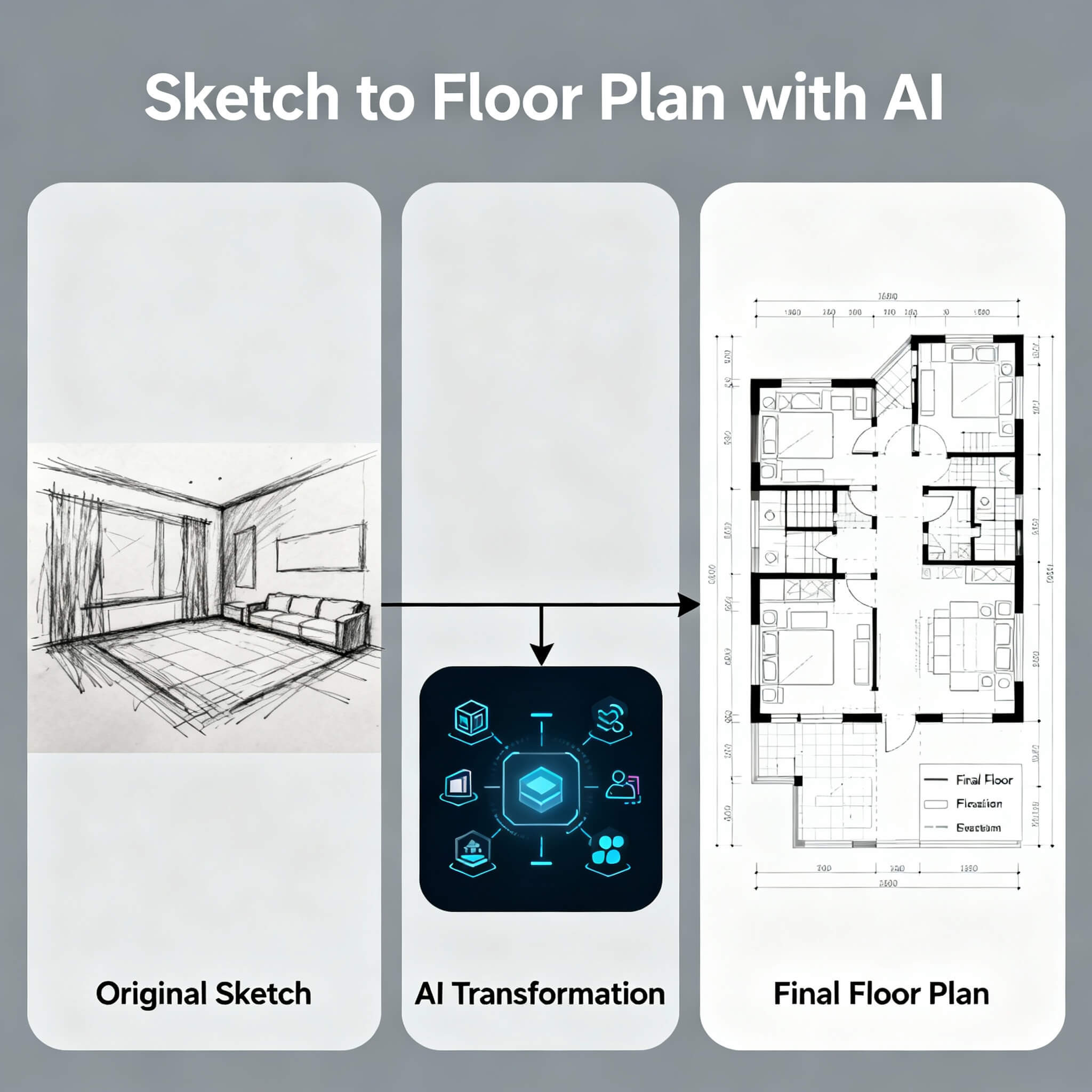
Open Arcadium’s Floor Plan Creator and start a project. If you already have a 2D floor plan or sketch, import it as a reference image rather than rebuilding the geometry from memory. Just drag the floor plan in and Arcadium will add the walls, doors, windows and openings automatically for you. Or you can do this manually by using one wall with a known measurement to scale the reference correctly; an image that looks proportional on screen is not automatically dimensionally accurate. Lock the reference once it is positioned so you cannot accidentally drag it while drawing.
Open the menu in the upper-left corner and choose feet and inches. This keeps the working units familiar for real estate. Identify the living room, kitchen, bedrooms, bathrooms, entry, hallways, and any other spaces you will model. If you lack a dependable source plan, measure the property or obtain an appropriate professional plan before presenting dimensions as fact.
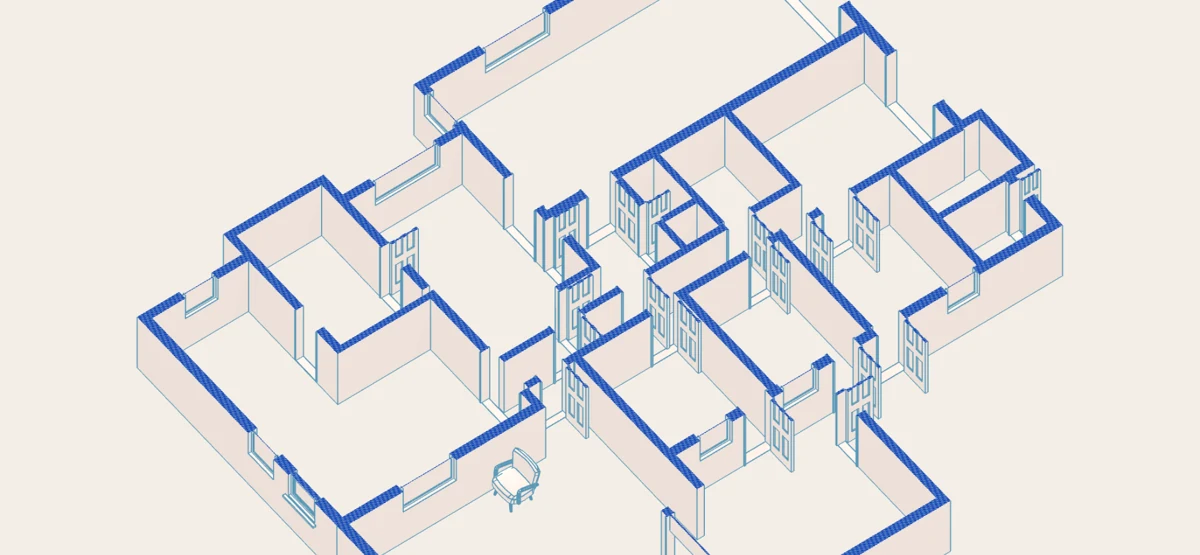
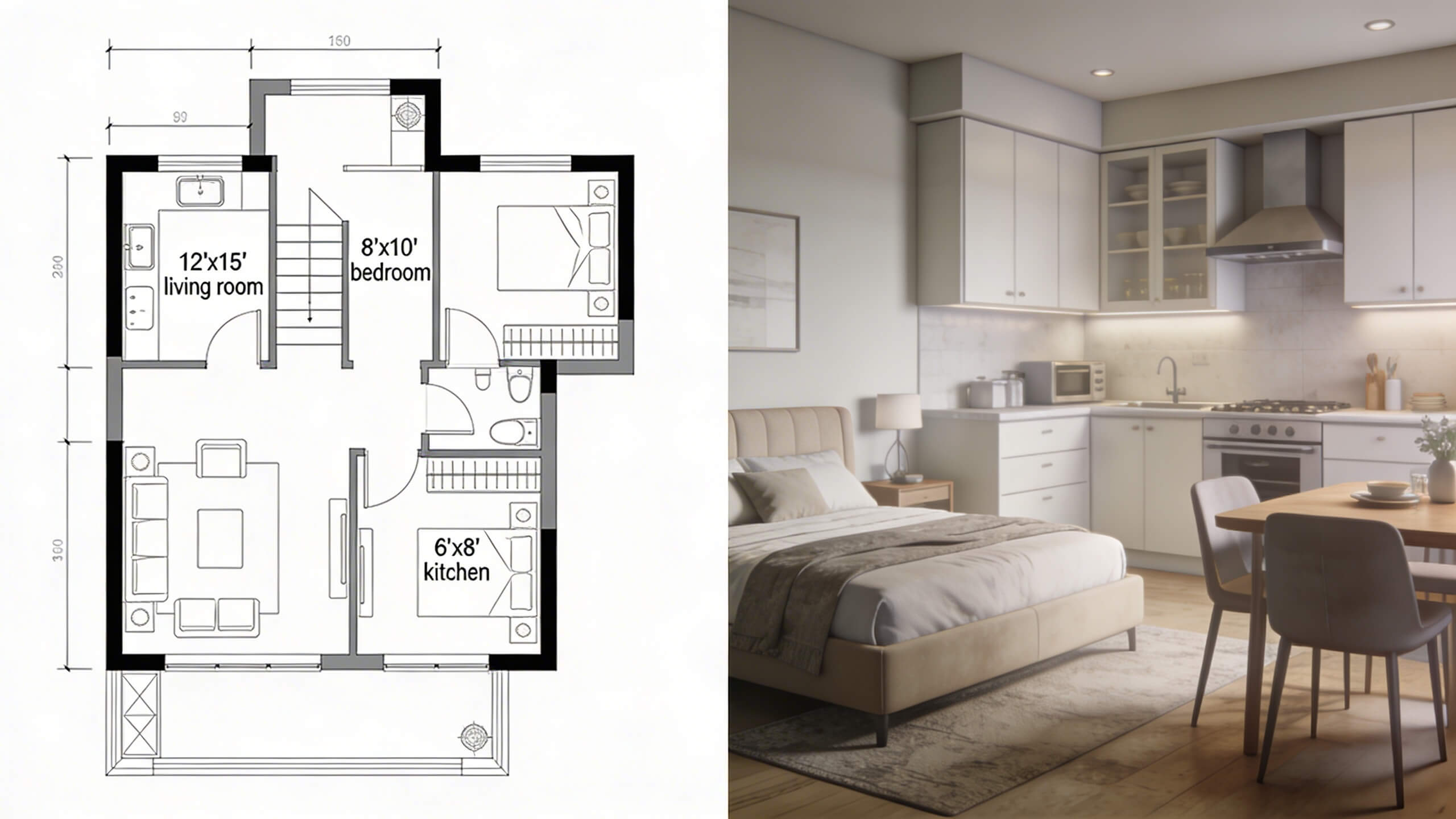
Arcadium demonstration: an existing 2D residential floor plan used as the modeling reference.
Before tracing, cross-check at least two known dimensions on the imported image. One correctly scaled wall does not guarantee the entire source has been drawn accurately, especially if an old plan has been stretched or photographed at an angle. An agent should flag disagreements and verify the property rather than assume that the image proportions are reliable.
2. Adding Exterior and Interior Walls
Choose the wall tool, click the start of a wall and then its endpoint, and continue connecting points around the property. First establish the exterior footprint; then trace internal partitions so the room arrangement matches the reference. Arcadium snaps walls to right angles and other wall points. Hold Shift while drawing when you need to disable snapping for an unusual angle.
Select a wall to adjust its height and thickness with the blue controls or typed values. Use exact dimensions wherever available rather than eyeballing the shape. Curved or irregular walls can be adjusted with Arc or Bézier options; alignment controls help straighten connected runs. As the walls rise in the 3D scene, orbit the model and check that corridors, room boundaries, and openings still make sense. A seemingly small wall error can materially change how a narrow bedroom or hallway appears.
Arcadium demonstration: the imported plan being converted into a three-dimensional structure.
As the walls come together, compare room connections to the original sketch. A hallway that is only a few inches too wide can make two adjoining rooms appear more spacious than they are; similarly, an incorrectly placed internal partition may give a misleading impression of an open-plan kitchen. Record alcoves and angled walls as actual shapes rather than straightening them solely for a tidier model.
3. Place Doors, Windows, Stairs, and Fixed Features
Open the object library, choose the appropriate door or window, and drop it onto the wall. Arcadium cuts an opening automatically. Drag it along the wall to position it, then use the blue handles or dimension inputs to size it. For a door, use the swing setting, R to rotate, or Mirror to change the opening direction where needed. Check these choices against the property; an incorrect swing can make a proposed furniture arrangement look more practical than it is.
For a multi-story residence, the library also includes floor and stair elements. Add those only when they are relevant to the source property. Model built-in cabinets, bathroom fixtures, and other immovable fittings before testing alternative furniture layouts, so the design reflects actual usable space.
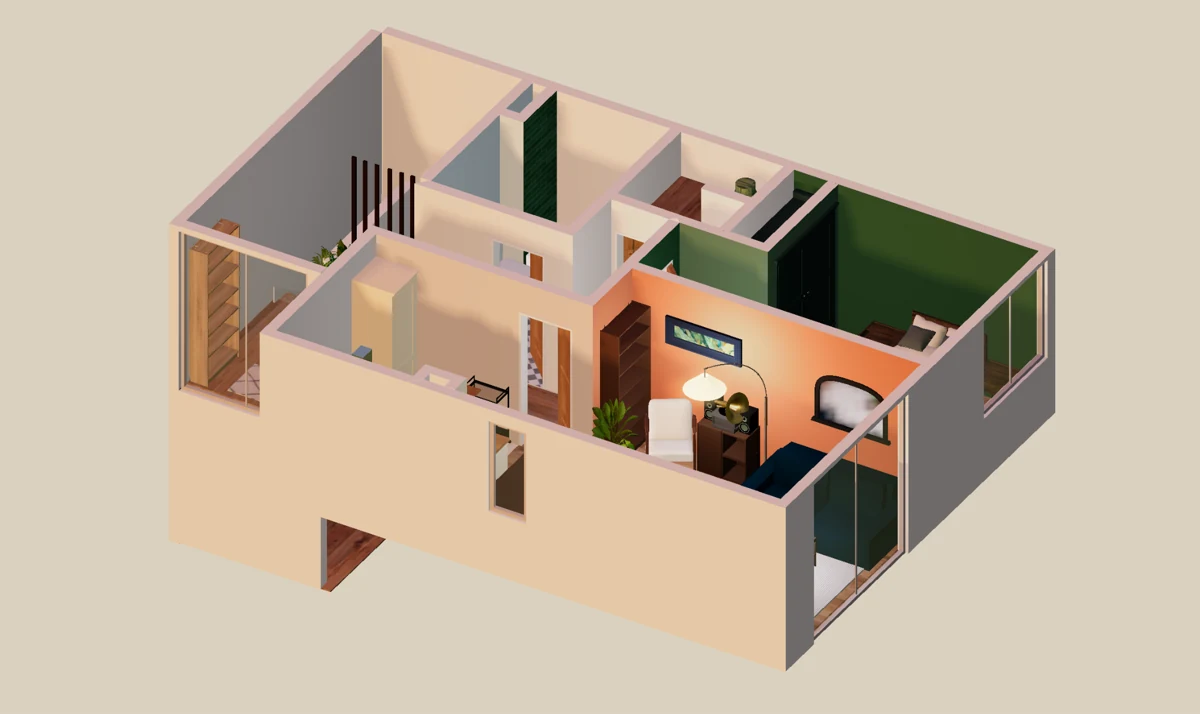
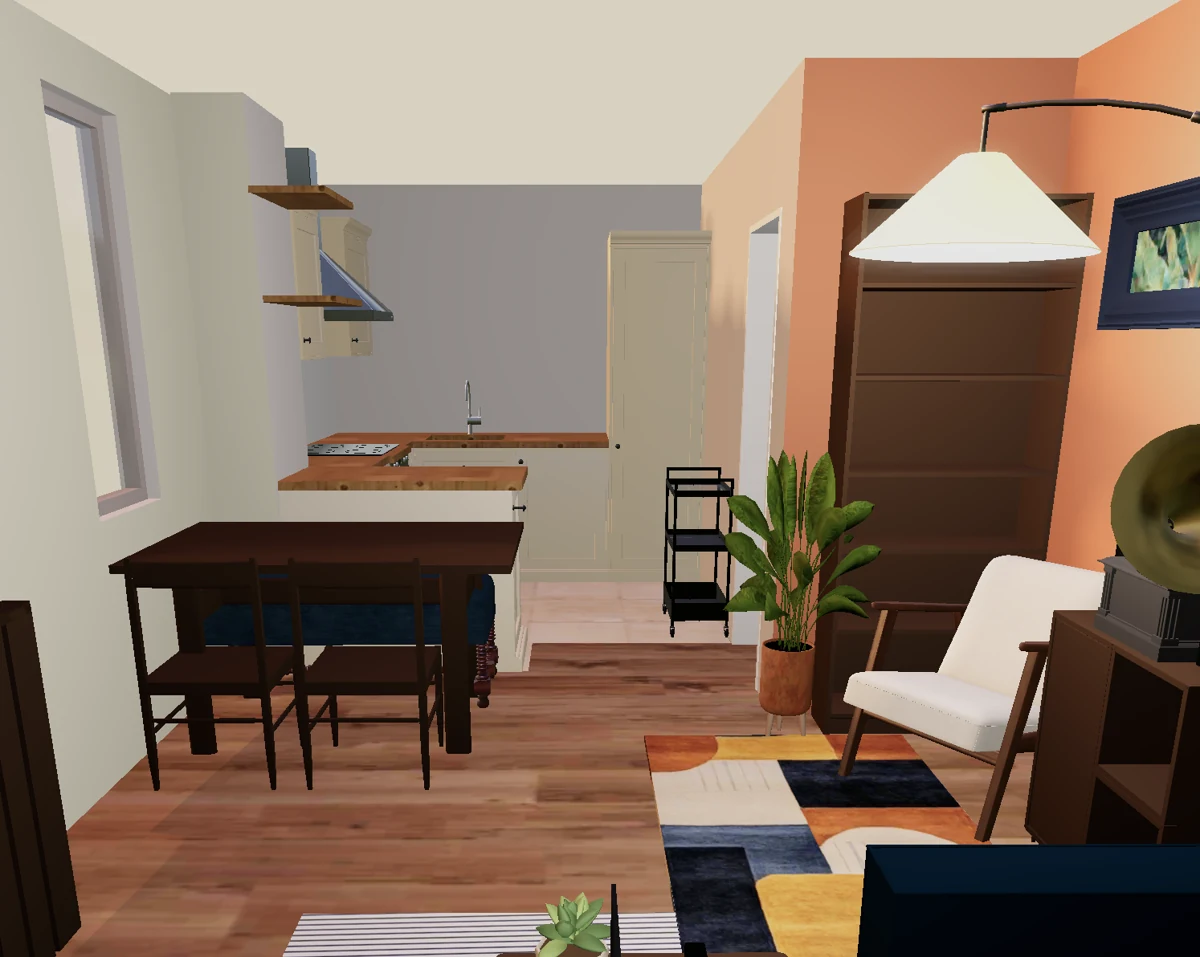
Arcadium demonstration: room partitions and openings visible as a 3D floor plan.
Door swings are especially significant in smaller bedrooms: a bed may physically fit between the walls but block the bedroom door when opened. In the kitchen, check that modeled cabinet runs, appliance positions, windows and entry openings correspond to the home. Where stairs or several levels are involved, ensure the model shows realistic connections between floors, not just individual attractive rooms.
4. Label Rooms and Add Useful Dimensions
Switch to a top-down plan using 1, which cycles through plan and elevation views. Use orthographic mode (2) when you need an undistorted working view. Arcadium includes text labels, dimension lines, area annotations, scale bars, arrows, and door-swing symbols. Label the bedrooms and shared living areas, and add measurements where buyers commonly ask about furniture fit or circulation.
For example, measuring the primary bedroom can help explain whether a proposed bed and nightstand configuration is realistic. Keep actual source measurements distinct from estimated dimensions, and never describe a drawing or area annotation as a certified MLS square-footage calculation. That information may need a different measurement process under local requirements.
For a buyer-facing version, prioritize the measurements that answer likely questions: bedroom dimensions, access widths and the overall relationship between living areas. Use consistent labels and units across the page. Keep any uncertain measurement clearly separate from measured information. Arcadium’s annotations are helpful for communicating the plan; they do not on their own certify total property square footage.
5. Furnish Rooms to Show How the Space Might Work
Open Arcadium’s 3D model library and start with the living room. Add a sofa and a coffee table, then adjust their positions to show usable circulation. Select any object to reveal editing controls: red arrows move it, orange controls rotate it, and blue controls resize it. You can type exact values into the on-screen labels, snap objects to neighboring surfaces, or hold Shift while dragging to position them freely.
Use Ctrl+D to duplicate objects such as dining chairs. Select several elements and press Ctrl+G to group them into an arrangement you can move together. Lock the fixed walls or cabinetry before rearranging furniture. For an empty bedroom, try a bed and side tables; for a spare room, try a desk. These examples communicate possibilities, but do not claim a furniture item will fit unless its dimensions and clearances have been checked.
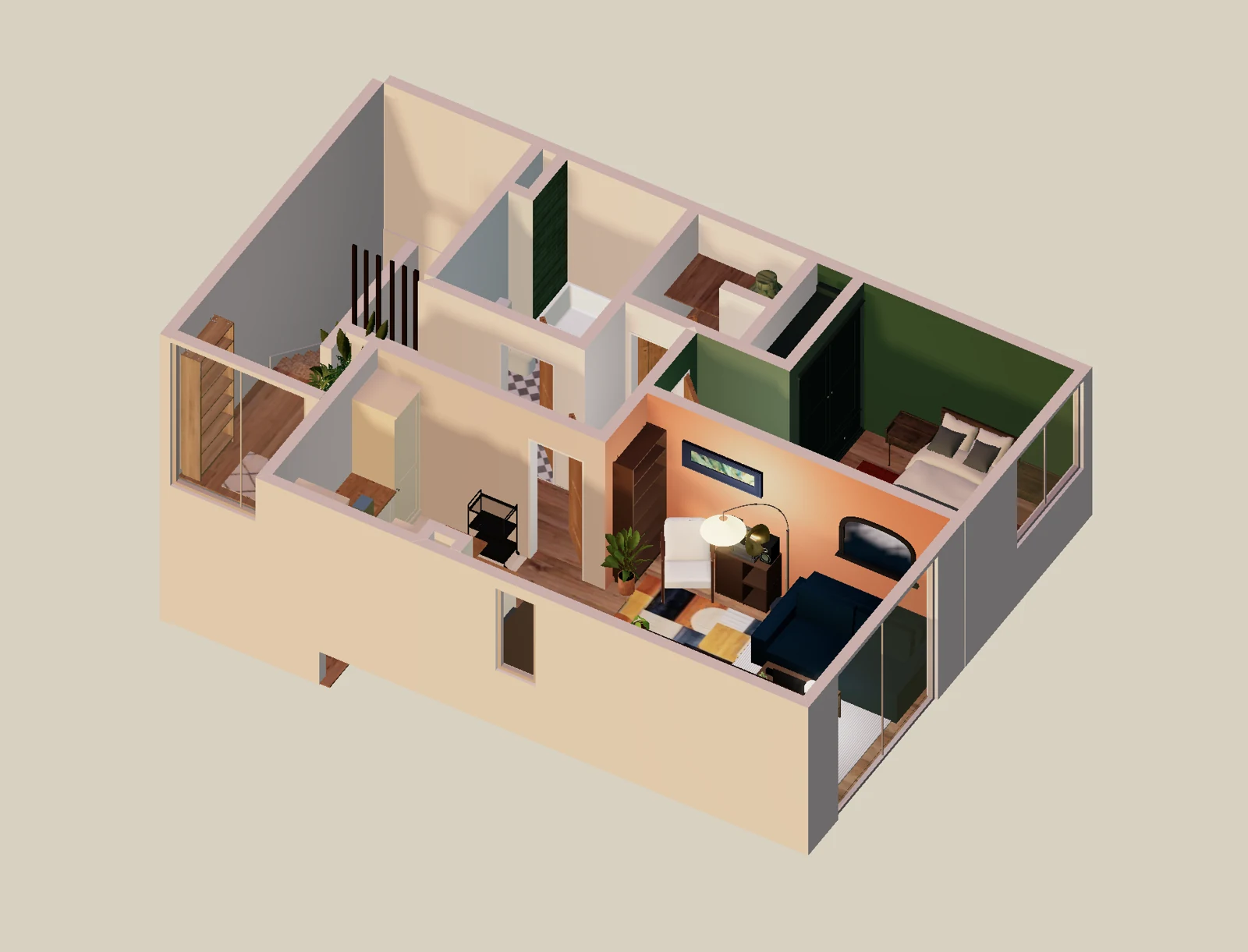
Arcadium demonstration: furniture and finishes being introduced into the residential layout.
When staging a model, begin with furniture whose dimensions can be checked. An oversized sofa can make a living room appear unworkable, while unrealistically tiny pieces can exaggerate space. Check the clearance around tables, between the bed and walls, and in front of doors. For a spare bedroom, one model can show a realistic bed arrangement and another a home office, but the listing should continue to describe the room accurately.
6. Adjust Materials, Lighting, and Room Finishes
With the layout established, use Arcadium’s materials and color controls to represent flooring, wall finishes, cabinets, and furniture. Press P for the color picker and material controls; choose from preset materials or apply a custom color. You can adjust texture scale, rotation, brightness, and related settings. Environment controls let you modify the scene’s lighting and background.
For a current-condition marketing model, stay faithful to what is actually there. For a proposed kitchen remodel, create and label a separate conceptual version with updated materials. Being explicit about what is existing versus imagined protects buyers from mistaking an attractive rendering for a photograph or promised renovation.
Arcadium demonstration: inspecting finishes and fitted elements in a modeled kitchen.
Maintain separate versions or clearly differentiated presentations for the existing condition and a proposed redesign. For example, a dated kitchen can be shown with its current cabinetry and flooring, followed by a concept using different colors and finishes. If a concept proposes moving a wall or window, label that structural change explicitly. A visualization cannot establish whether such work is feasible, permitted or affordable.
7. Inspect the Property in 2D, 3D, and First Person
Use 1 for plan and elevation views, 2 for orthographic, and 3 for perspective. Press 4 to open a cross-section and 5 to show outlined edges. Right-drag to orbit, left-drag to pan, and use the mouse wheel to zoom. Arcadium’s first-person mode lets you move through the modeled property with W, A, S, D or the arrow keys; press Esc to exit.
A useful agent presentation starts overhead so the buyer understands the floor plan, then changes to perspective to show how the kitchen relates to the living area. First-person mode can help explain how the rooms connect. It is still a tour of a model rather than a recording of the home’s actual condition.
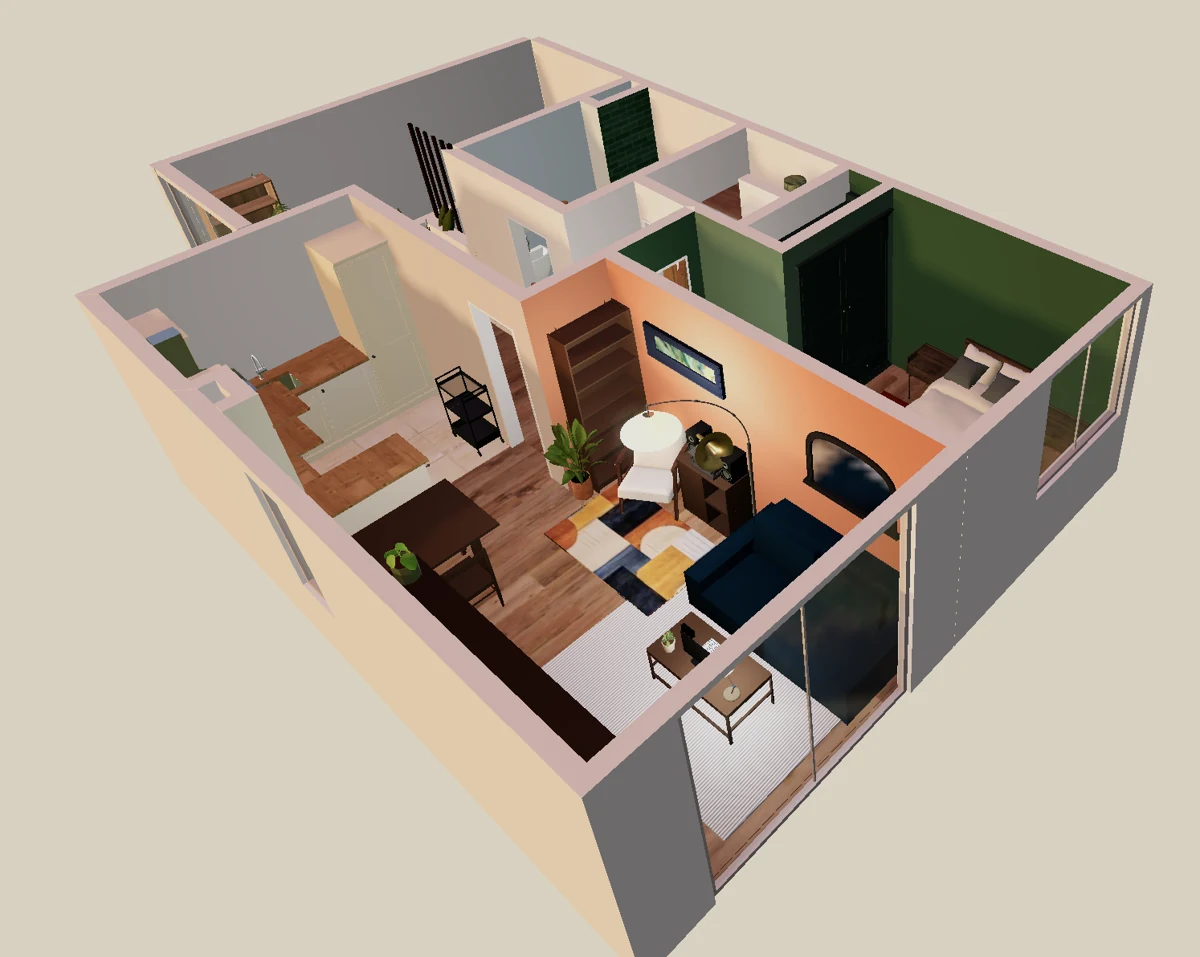
Arcadium demonstration: elevated 3D view showing room connections across the modeled property.
An agent presenting the example property to a buyer could start with the overhead view to identify the entry and bedrooms, switch to a perspective view of the shared living area, then use first-person navigation to explain the path from kitchen to dining space. Return to plan view for measurements. A first-person model is useful for spatial understanding but is not photographic evidence of present condition.
8. Create an AI Visualization—Then Check It
For a more realistic-looking conceptual image, frame the desired 3D view and open Arcadium’s AI image tool. Use the current model view, an uploaded image, or a previous result as the input. Select a style or describe the materials and mood in a prompt; for example, “Residential kitchen with oak flooring, green cabinets, and morning light; retain the existing layout and window positions.” Generate a version, review it, and refine the prompt if necessary.
AI output can change windows, fixtures, proportions, or finishes despite the instructions. Check the result against the source model. If an image depicts a potential renovation or invented furnishing, label it as a conceptual visualization. Arcadium also offers AI-assisted design generation and AI furniture creation, but these outputs should be checked rather than treated as automatic property surveys.
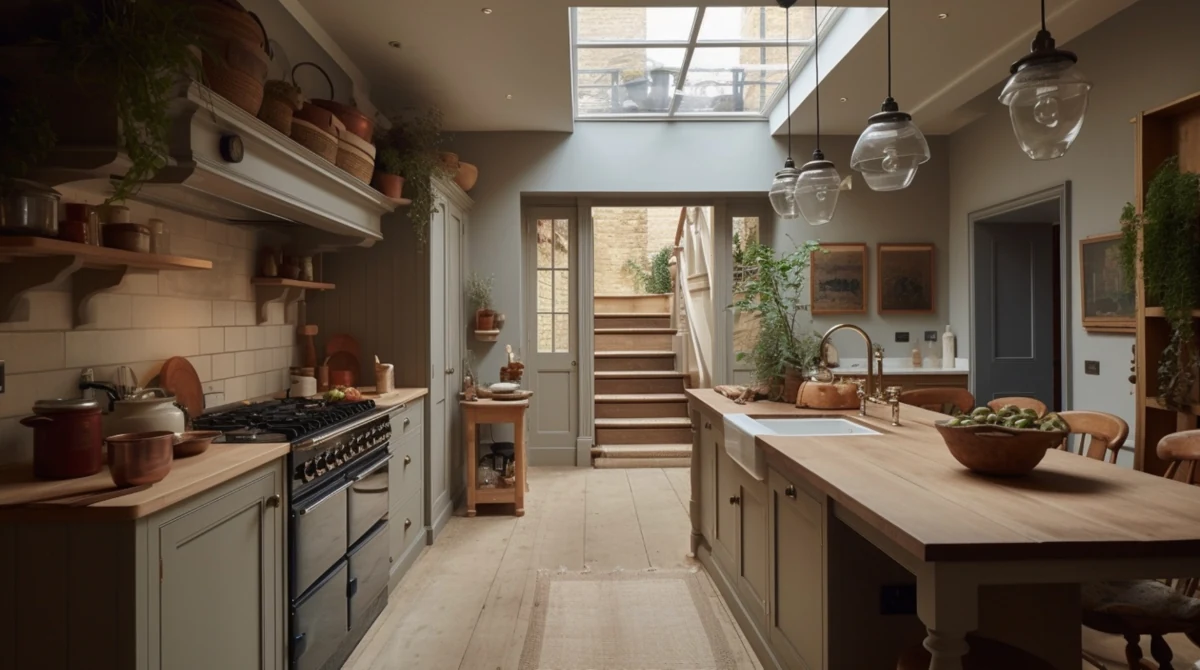
Arcadium demonstration: an AI-generated kitchen visualization. This is a concept image, not a property photograph.
Review each AI result against the source model before anyone sees it: verify visible walls, doors, windows, fitted kitchen and bathroom fixtures, room proportions and furniture sizes. AI can introduce extra openings or replace permanent features even when prompted to preserve the layout. Share a version labeled “Conceptual visualization” where applicable, and never pass it off as an actual photograph of the property.
9. Share the Finished Layout or Prepare a PDF
When the model is ready, use Arcadium’s sharing feature to send a view link. Recipients can open the project in their browser without an account. Collaborators who need to make changes can instead be invited to edit. For a static floor plan, choose a suitable plan view and use Ctrl+P (Cmd+P on Mac) to open print preview, select Letter paper and the desired orientation, then save to PDF.
Arcadium can also export 3D files as GLB, OBJ, or STL for compatible workflows. These are model formats—not automatically MLS-ready photos. Before distributing anything publicly, review the dimensions, labels, furniture, and any edited or AI-generated imagery, then check the applicable brokerage and MLS media rules.
Before distribution, check the finished layout against the source information, confirm dimensions and labels, identify conceptual furniture or alterations, and choose the format that matches the intended recipient. A browser link is useful for interactive client review; a PDF or static image is a different kind of asset. An exported GLB, OBJ or STL file is a 3D model, not an automatic MLS-ready photo. Check accepted formats, file limits, external-link rules and disclosure requirements with the relevant MLS and brokerage.
Other Ways Agents Can Use 3D Floor Plans
The same workflow can support several real estate situations. For a vacant listing, model furniture at realistic dimensions to help buyers interpret the room. For a dated property, prepare a clearly labeled renovation concept that shows possible finishes without implying that upgrades already exist. For an out-of-state buyer, share the model ahead of a showing to clarify the layout and prepare more focused questions.
New-construction and pre-sale properties can also benefit from an editable visualization of the proposed arrangement, provided it is identified as a design rather than completed construction. In an unusually shaped room, moving a sofa, dining table, or desk within the model may reveal circulation problems before an agent presents a particular layout as practical.
How to Virtually Stage a Vacant Property
Virtual staging can mean furnishing an editable 3D model, digitally adding furniture to a photograph, or creating a conceptual image with AI. These methods have different outputs. A furnished Arcadium model helps explain room layout and potential furniture fit; it should not be described as a photographic record of how a vacant home currently looks.
Start with the rooms buyers often find hardest to judge when empty: the primary bedroom, living room, open-plan living and dining space, or an unusually narrow spare room. Keep actual room boundaries and opening positions unchanged. Add realistically sized furniture, test circulation space and compare two arrangements if a room could reasonably serve different purposes.
In a living room, use a sofa, chairs and a coffee table to demonstrate a plausible seating area while leaving room to reach the doors. In a bedroom, check the clearance around a bed, not merely whether its footprint fits. A spare room can be modeled as a work-from-home space with a desk, but a desk does not establish that it meets any regulatory or listing definition of a bedroom. In an open-plan space, furniture can help mark dining and seating zones without inventing partitions.
If the presentation includes AI imagery or digitally furnished photos, label the images clearly and keep the original condition available to buyers. Staging should illustrate potential, not conceal damage, disguise a permanent fixture or imply a larger room than exists.
How to Show Renovation Potential Without Misrepresenting the Home
A fixer-upper offers an obvious use for two side-by-side concepts. First model the existing kitchen, preserving its windows, doors, cabinet positions and dimensions. Then prepare a separate proposed-finish version with alternative colors, flooring and cabinetry. If the idea requires relocating plumbing or removing a partition, say so and identify it as a proposal rather than an existing feature.
The same principle applies to an unfinished new-construction home: a model can communicate the proposed design, but final construction specifications and actual finishes still need to be confirmed. Neither a rendering nor a furniture layout substitutes for contractor estimates, structural review, permit approvals or inspections.
How to Prepare a Floor Plan for Listing Marketing
Choose deliverables according to where they will be used. A labeled overhead layout is appropriate for a brochure or buyer handout when readable at the final page size. An interactive link may help with one-to-one buyer presentations and internal reviews. Concept images can accompany listing materials when properly disclosed and permitted. Prepare separate versions when different audiences need different information rather than putting every annotation on a single image.
Before uploading material to an MLS or property portal, verify that platform’s accepted image or document formats, size limits, rules on external URLs and any requirements for labeling edited or AI-assisted imagery. Check brokerage and applicable advertising policies as well. Arcadium offers sharing, PDF printing and several 3D model exports, but this does not establish an automated MLS integration or universal listing acceptance.
How Long Does It Take to Make a 3D Floor Plan?
Arcadium’s supplied floor-plan-to-3D demonstration runs for about 14 minutes, but that is a video demonstration—not a guaranteed time to measure, model, review, and prepare a full listing. Actual work depends on the floor plan’s complexity, how reliable the starting dimensions are, how much furniture is added, and whether AI images are needed. Its browser-based editor, snapped walls, adjustable objects, and connected 2D/3D views can make revisions more straightforward than rebuilding drawings for each presentation.
The complete workflow includes property measurement or plan verification, reference preparation, wall tracing, placement of openings, annotations, furnishing and review. A simple one-story plan can demand much less work than a multi-story property with irregular walls or detailed fixtures. The supplied demonstration illustrates a modeling process, but its runtime is not a verified estimate for measuring and preparing a real listing.
How Much Does a Real Estate Floor Plan Cost?
The cost depends on who prepares the source measurements and what is delivered. An agent working independently needs time to measure or verify the property, use suitable software, review the result and correct mistakes. A dedicated measurement professional may charge a service fee but can be appropriate when reliable dimensions or a formal area calculation are important. A real estate photographer or marketing supplier may offer floor plans as part of a wider media package.
Approach
Cost and effort considerations
Best fit
Agent-created model
Software allowance plus measurement, editing and review time
Editable illustrative layouts with reliable source measurements
Measurement or floor plan professional
Quoted service cost; scope and accuracy standard should be agreed
Complex properties or formal measurement needs
Photography/marketing package
Cost depends on included photo, plan or tour deliverables
Agents outsourcing several listing assets together
Compare deliverables rather than headline prices alone: does the service include measured dimensions, a 2D plan, an editable 3D model, an interactive tour or just an image? Consider turnaround time, correction options and who is responsible for accuracy. The cheapest option is not always appropriate when square footage or other claims require professional verification.
Can Real Estate Agents Use Arcadium for Free?
Arcadium offers a Free plan with two projects, up to 30 objects per project, and one floor plan generation under the supplied plan limits. Pro provides unlimited projects and objects, custom-model imports, 150 AI images per month, and 10 floor plan generations; Power increases those allowances further. Professional users creating many furnished properties may need a paid tier. Check Arcadium’s pricing page for current prices and feature limits before subscribing.
Arcadium’s pricing has Free, Pro and Power plans. The Free tier allows two projects, up to 30 objects per project and one floor plan generation. Pro has unlimited projects and objects, custom model imports, 150 AI images per month and 10 floor plan generations; Power has larger monthly limits. Those are feature allowances rather than a statement of current US-dollar prices.
Accuracy and Responsible Listing Presentation
Use verified plans or reliable measurements to build the model, and recheck openings, levels, labels, and furniture sizes before sharing it. A 3D visualization is not a property survey, inspection, or substitute for professionally verified square footage. Separate existing features from potential changes, disclose concept images, and follow the specific MLS and brokerage rules governing marketing media. These safeguards matter as much as how polished the finished layout looks.
Distinguish the purpose of each deliverable. An illustrative marketing model helps explain space; a measured plan records dimensions from an identified process; a professional survey and an appraisal-related area calculation serve different formal purposes; and a proposed renovation is a concept. A realistic render does not prove that an alteration has permission, that a room meets a listing classification or that the modeled area is professionally verified.
Final Accuracy and Publication Checklist
The represented room layout agrees with the inspected property or reliable source plan.
Wall lengths, window and door positions, and permanent fixtures have been checked.
Any claimed square footage follows the appropriate required measurement process.
Proposed changes and conceptual furniture are distinguished from current conditions.
AI-generated imagery has been checked for invented or missing architectural features.
The intended MLS or publication accepts the planned file format and disclosures.
Brokerage policies and applicable professional advertising requirements have been reviewed.
Frequently Asked Questions
Can I turn an existing 2D floor plan into 3D?
Yes. Import the image, scale it using a known measurement, trace the walls, and add doors, windows, and other property features. Check the model against the source plan as you go.
Do I need experience with CAD software?
Not necessarily. Arcadium uses browser-based drawing and object controls, although accurate property modeling still requires reliable measurements and careful checking.
Can buyers view the floor plan without an Arcadium account?
Yes. Arcadium supports view links that recipients can open in a browser without signing in.
Can I use an Arcadium floor plan in an MLS listing?
That depends on the relevant MLS rules, accepted media formats, and brokerage requirements. Check these before uploading a PDF, image, walkthrough link, or conceptual rendering.
What is the difference between a 3D floor plan and a virtual tour?
A 3D floor plan is a model of the layout, while a photographic virtual tour documents actual spaces using captured imagery. They can complement each other but should not be presented as equivalent.
How do Realtors create floor plans for listings?
Begin with current measurements or a dependable existing plan, record openings and fixed features, draw or trace the layout and review the result against the property before sharing. The steps above show how to complete the modeling stage in Arcadium.
Can I make a reliable floor plan from photographs alone?
Photos can help identify finishes and fixtures, but ordinary uncalibrated images do not provide dependable room measurements. Obtain or verify dimensions before presenting the layout as measured.
Can I create a floor plan using my phone?
Some phones and third-party apps offer room measurement or scanning features, but accuracy and outputs vary. Verify their measurements independently. Do not assume Arcadium includes automatic phone-based property scanning.
How accurate should a real estate floor plan be?
It should be accurate enough for its stated purpose and not mislead buyers. Illustrative furniture arrangements may require less formal measurement than published area figures, which may need a specified standard or professional.
Should an agent create a floor plan or hire someone?
DIY may suit a straightforward property when current measurements are reliable and the agent has time to review the result. Hire a qualified provider when the property is complicated or formal measurement and area figures are required.
Can I virtually stage a vacant home?
Yes. Furnishing an Arcadium model can show plausible uses for an empty space. Clearly identify conceptual furniture and never treat an AI rendering as an unedited property photograph.
Can I show buyers a proposed renovation?
Yes, as a clearly identified concept. Show the existing condition alongside it and avoid implying that structural changes are approved, feasible or included in the sale.
Start Building a Property Floor Plan With Arcadium
A useful 3D floor plan begins with reliable property information. Arcadium gives agents a way to turn that information into a furnished, editable layout they can inspect and share. Start with Arcadium’s Floor Plan Creator and use the workflow above to build a clear representation of your next property.


 Color palette generator
 3D design from AI chat
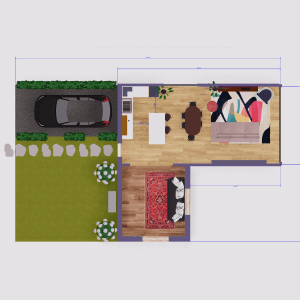 Floor plan creator
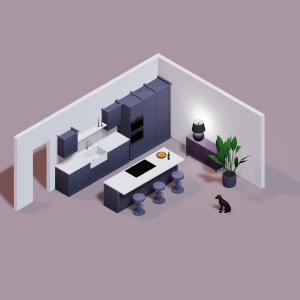 Kitchen design tool
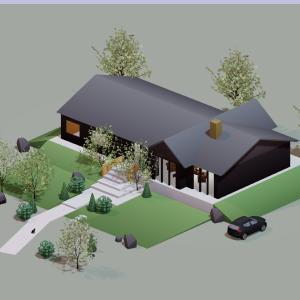 House design software
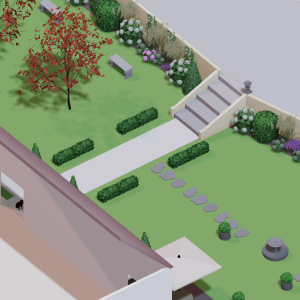 Landscape design software
 Bedroom design
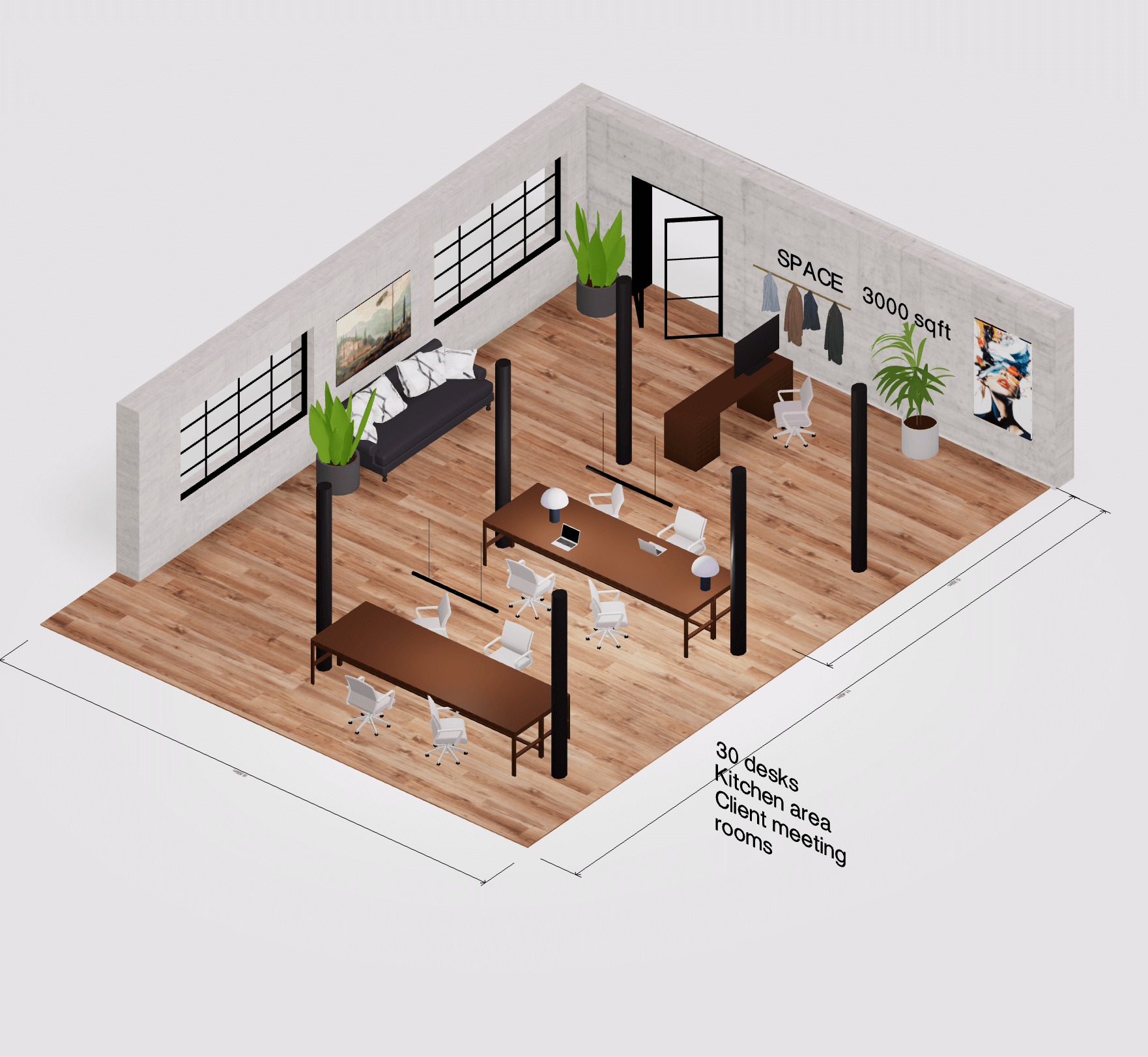 Office floor plan creator
 Trade show booth design
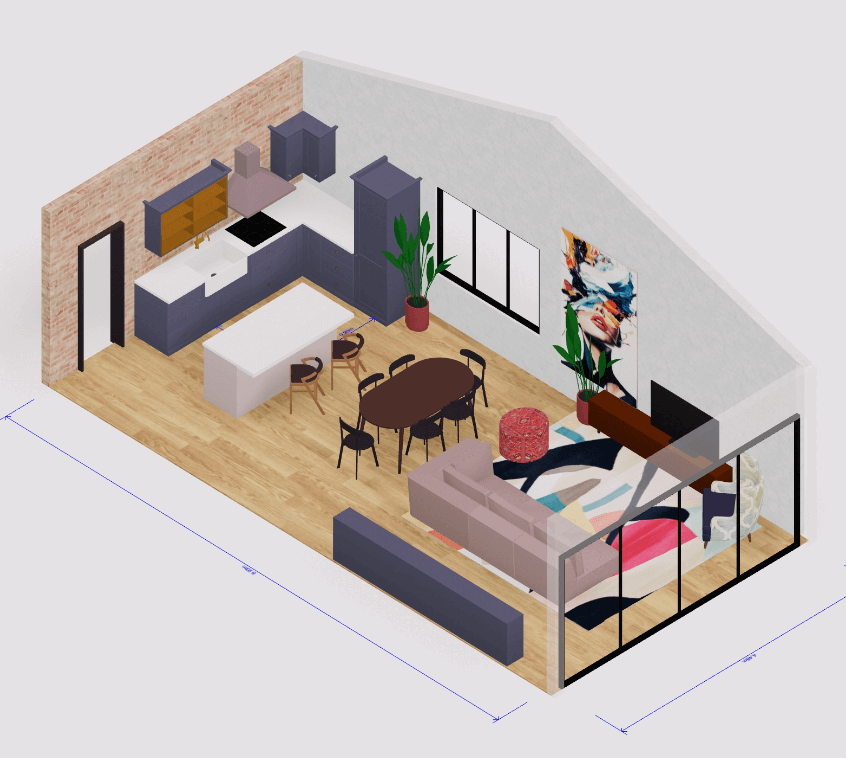 How to use Arcadium — full guide
 Community Showcase
 3D object library - free
 Articles and blog